A dedicated entrance with a passphrase
Contributors do not need to learn the WordPress dashboard or its menus. They open the URL shared by an administrator and enter a passphrase, including non-Latin text when preferred.
 WordPress Plugins
 atshift Fields
 User Profile Fields
 Freeform Login
 Feed Builder
 KOTOTSUGI
 atshift Members
Carry AI drafts into editable WordPress articles.
KOTOTSUGI is installed and used as a standalone WordPress plugin. It is not an add-on or module for atshift Fields or User Profile Fields, and neither plugin is required. Use Quick Post when a title and article text should be enough, or open the full workspace to review Markdown from ChatGPT, Claude, Gemini, or another writing tool. Both paths create editable standard WordPress blocks.
KOTOTSUGI is free software licensed under GPL-2.0-or-later. The current version is 1.0.
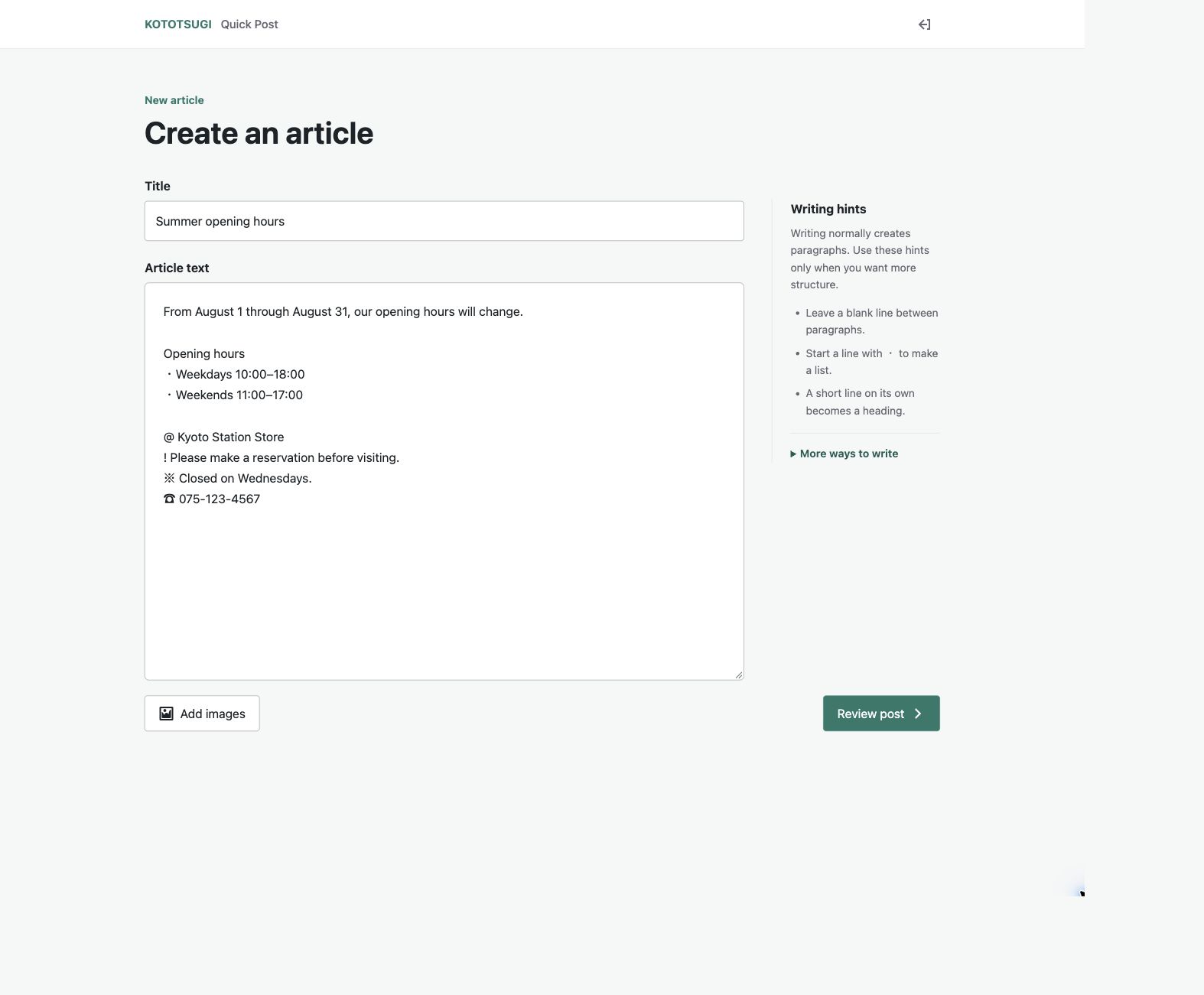
Quick Post is a focused posting screen that works outside wp-admin. Enter a title and article text, attach images when needed, review the result, and submit. Contributors never need to know that Markdown is available underneath.
Contributors do not need to learn the WordPress dashboard or its menus. They open the URL shared by an administrator and enter a passphrase, including non-Latin text when preferred.
Ordinary text becomes paragraphs, lines beginning with ・ become lists, and short standalone lines become headings. Optional prefixes can mark places, important information, notes, prices, and phone numbers.
Select images from the device and add alternative text. The review screen keeps the article and its images together before submission.
Administrators choose the destination, custom post type, author, category, draft or immediate publication, and display language. Contributors do not see settings they do not need.
Paste a draft or load a .md, .markdown, or .txt file. The resulting headings, paragraphs, tables, and images remain editable in the standard WordPress block editor.
Open it from the block editor for a post or page. Labels follow the WordPress profile language of the person using the editor.
Add a post or page, or edit an existing one. KOTOTSUGI does not appear in the Classic Editor.
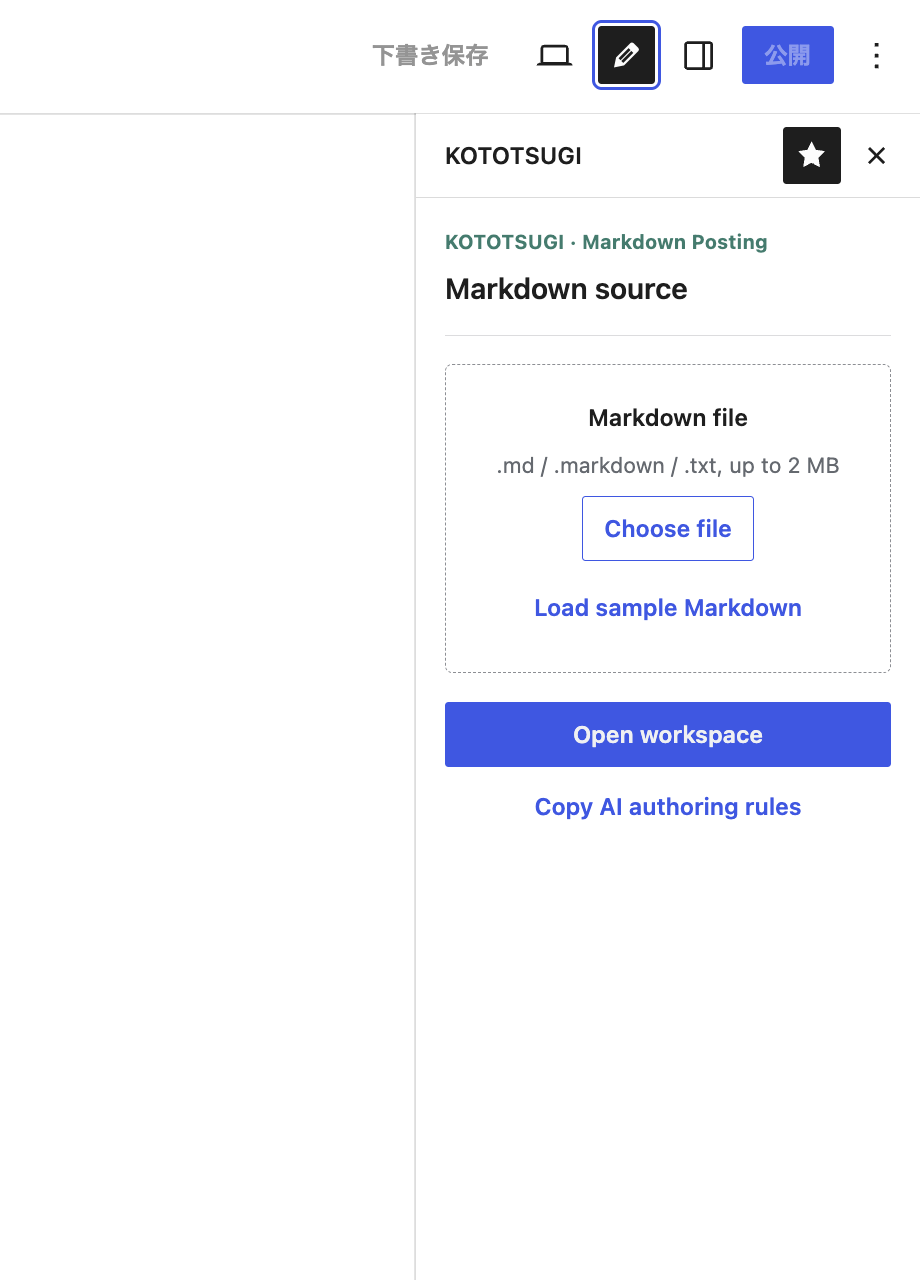
Use the KOTOTSUGI button in the upper-right toolbar to open the Markdown Posting sidebar.
Open the upper-right Options menu, then choose Plugins → KOTOTSUGI. Enable the pin control in the sidebar header to keep the pencil button in the toolbar.
Choose a Markdown file, load the sample, or open the workspace immediately and paste the draft there.
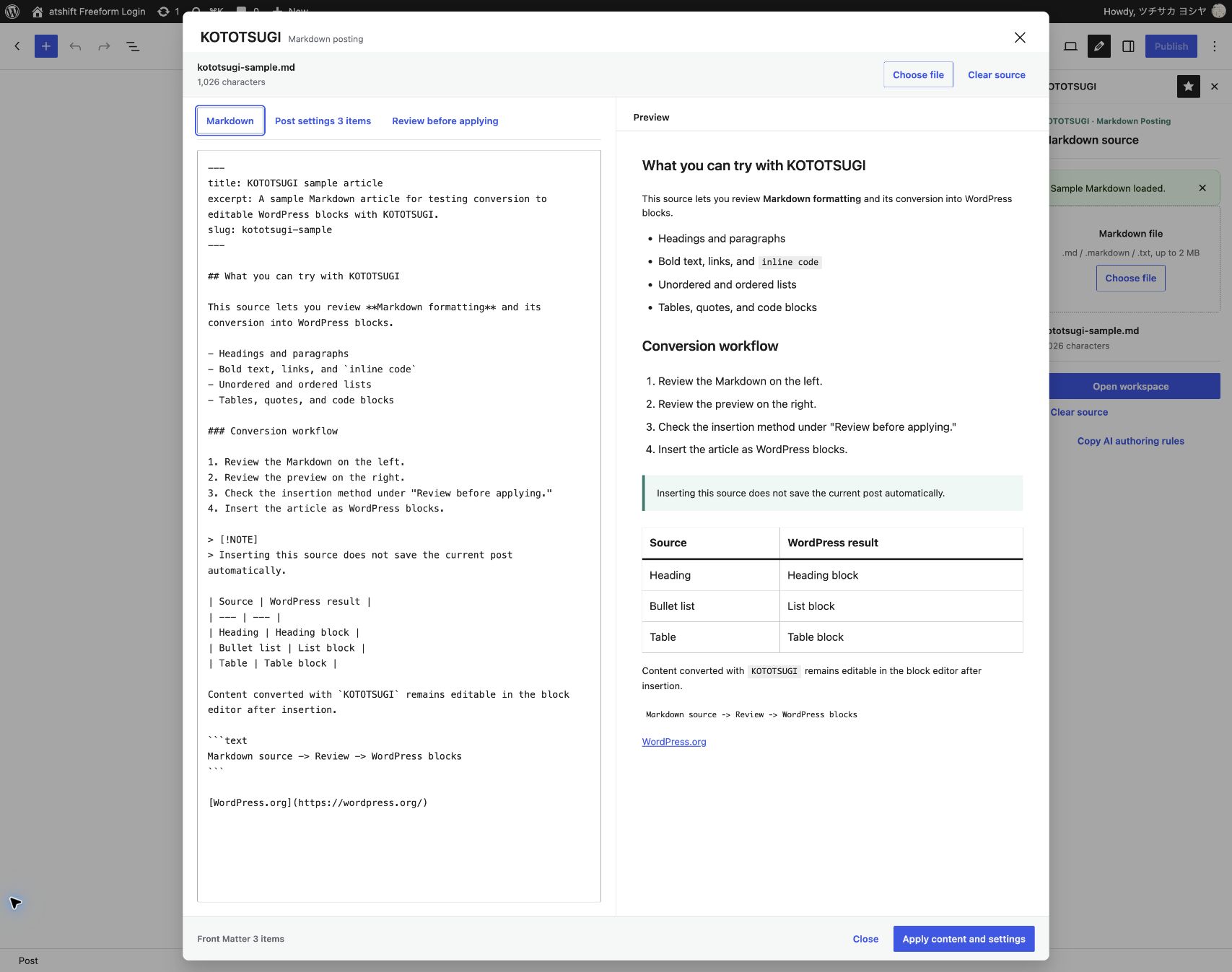
Paste Markdown directly, choose a local file, or drag and drop one into the workspace. Files are read in the browser and are not uploaded elsewhere by KOTOTSUGI.
Review headings, lists, tables, quotes, code, links, images, and GitHub-style callouts before they enter the editor.
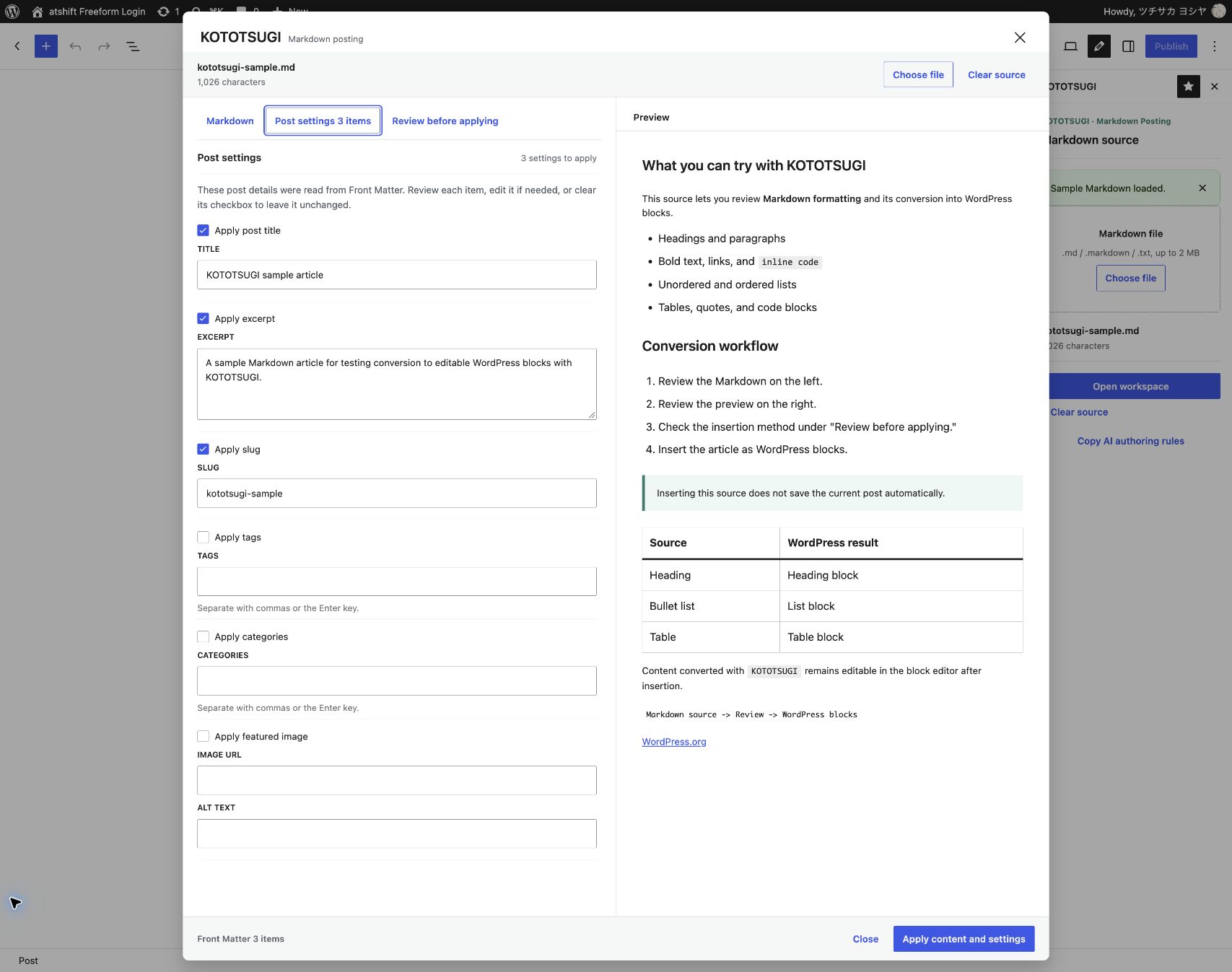
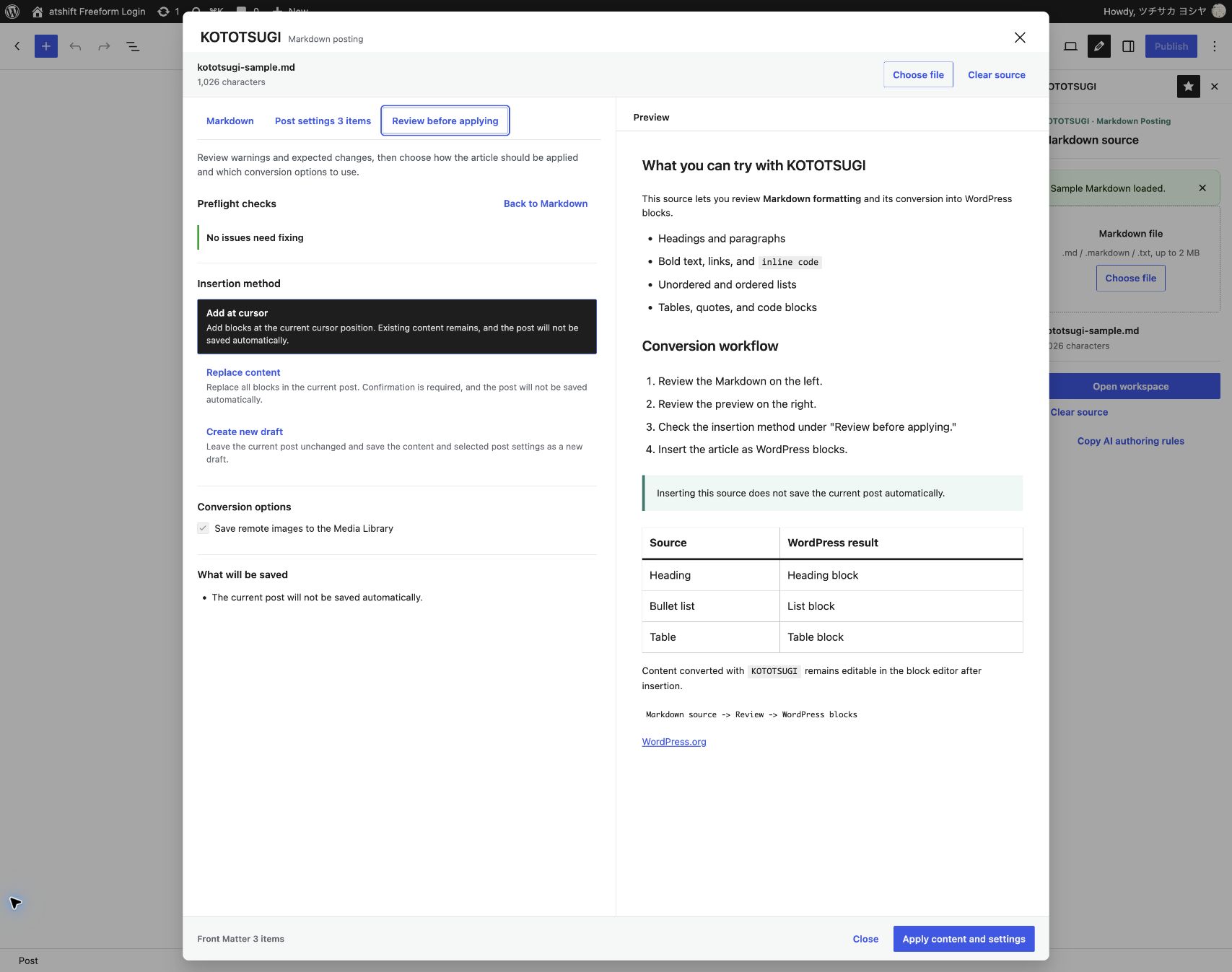
Review Front Matter under Post settings, then use Review before applying to inspect warnings, compare three insertion methods, and adjust conversion options.
KOTOTSUGI generates standard WordPress blocks instead of locking the body into a proprietary format. Edit, reorder, or replace content before publishing.
Give your writing tool the bundled authoring rules before requesting an article, then review the result in KOTOTSUGI. A sample article is also included for a one-click first trial.
Before asking ChatGPT, Claude, Gemini, or another AI to write, choose Copy AI authoring rules in KOTOTSUGI and paste the text into the conversation, or give the AI the bundled KOTOTSUGI-RULES.md file. The rules cover supported structure, Front Matter, heading order, and image alternative text, helping the AI produce a draft that is ready to review and import. Although the file is written in English, it tells the AI to write the article, reader-facing post settings, and alternative text in the language you request, including your native language.
Create Markdown with body copy, title, excerpt, tags, and image alternative text in the language requested by the reader.
Check the source, preview, Front Matter, heading hierarchy, image URLs, and other preflight results.
Insert at the cursor, replace the current post body, or save the import as a separate WordPress draft.
KOTOTSUGI reads titles, excerpts, slugs, tags, categories, and featured images from YAML Front Matter. Edit each value before applying it or disable individual settings.
Convert ATX headings, paragraphs, bold, italic, inline code, links, images, ordered and unordered lists, tables, quotes, fenced code blocks, horizontal rules, and GitHub-style callouts such as NOTE.
Front Matter uses a focused YAML-compatible subset for post settings. Unknown keys are shown for review and are never applied automatically.
---
title: Article title
excerpt: Article summary
slug: article-slug
tags: [WordPress, Markdown]
categories: [Guides]
featured_image_alt: Description of the image
---KOTOTSUGI does not publish AI output automatically. It helps a person identify likely problems, inspect the result, and decide how the content should enter WordPress.
See syntax that may not convert and return to its source line.
Detect skipped heading levels and multiple H1 headings before insertion.
Review relative or malformed URLs and retain the original URL when import fails.
Adding or replacing blocks leaves final saving to the WordPress editor.
Validate permissions, URLs, formats, and size while rejecting SVG and private-network URLs.
Inserted articles remain as WordPress blocks even when the plugin is deactivated.
Search for KOTOTSUGI from Add Plugins in WordPress, or download the distribution ZIP from WordPress.org. After activation, open the workspace from the KOTOTSUGI button in the block editor toolbar.